
A drag and drop link in bio builder lets you build your bio page from blocks and move them into place with your cursor or finger, with no code and no fixed layout. You add a header, links, products, events and an FAQ, then drag each block to the spot that matches its priority. The order you choose decides what visitors tap first.
Most creators build the page once, in a hurry, and never touch the order again. Six months later the top slot still points at a launch that ended, and the thing you sell today sits in position nine. A builder that makes reordering a two-second job only helps if you know what each position is for.
This guide covers what a drag and drop builder controls, the order to build in, what belongs in each part of the page, and how to keep the layout current without redesigning it every week. It is for creators, small businesses and sellers setting up a page for the first time or rebuilding an old one.
Key Takeaways
- Order is the main design decision. Dragging is easy. Deciding what sits in the first three slots is where clicks are won or lost.
- Build in a fixed sequence. Header, priority link, offers, grouped extras, socials and FAQ. Style comes last, not first.
- Group long pages. Our rule of thumb: once a page passes eight or nine blocks, move the extras into collections.
- Edit the design safely. A draft layer with undo means visitors never see a half-finished redesign.
- Drag should never be the only way. Accessibility rules ask for a non-drag alternative, which matters if you edit from a phone.
What does a drag and drop link in bio builder do?
A drag and drop link in bio builder is an editor where every element of your page is a block you can add, remove and move. You change the order by dragging a block up or down the stack, and the published page follows. Good builders also let you restyle the page, group blocks into sections and preview changes before visitors see them.
The block model is what separates a builder from a plain list of links. A block can be a link, but it can also be a product with a price, an event with a date, a booking, or an FAQ. On More.You the page is built from blocks you reorder by drag: links, social icons, products, events, music pre-saves, podcast episodes, bookings, opening hours and FAQ, plus collections that group them. Any link can also be pinned to the top.
If you are new to the format itself, start with what a link in bio is and come back here to build one.
The 6-step build order
Building in the wrong order is a common reason a page looks finished and performs badly. People pick a theme first, then fit content around it. Reverse that.
- Set up the header. Add your photo, display name and a one-line bio that says what you do and for whom. On More.You you pick a header layout here: classic, hero, banner, cutout or shape.
- Place one priority block. Decide the single thing you most want a visitor to do this month. It goes directly under the header.
- Add your offers. Products, bookings, events or the newest episode. Two to four blocks, ordered by what earns the most.
- Group the rest. Older links, press, partner codes and archives go into named collections lower on the page.
- Finish with socials and an FAQ. Social icons and answers to the questions people ask in your DMs close the page for visitors who scrolled to the end.
- Style last. Theme, wallpaper, button style, font and colors, once you know how many blocks the design has to carry.
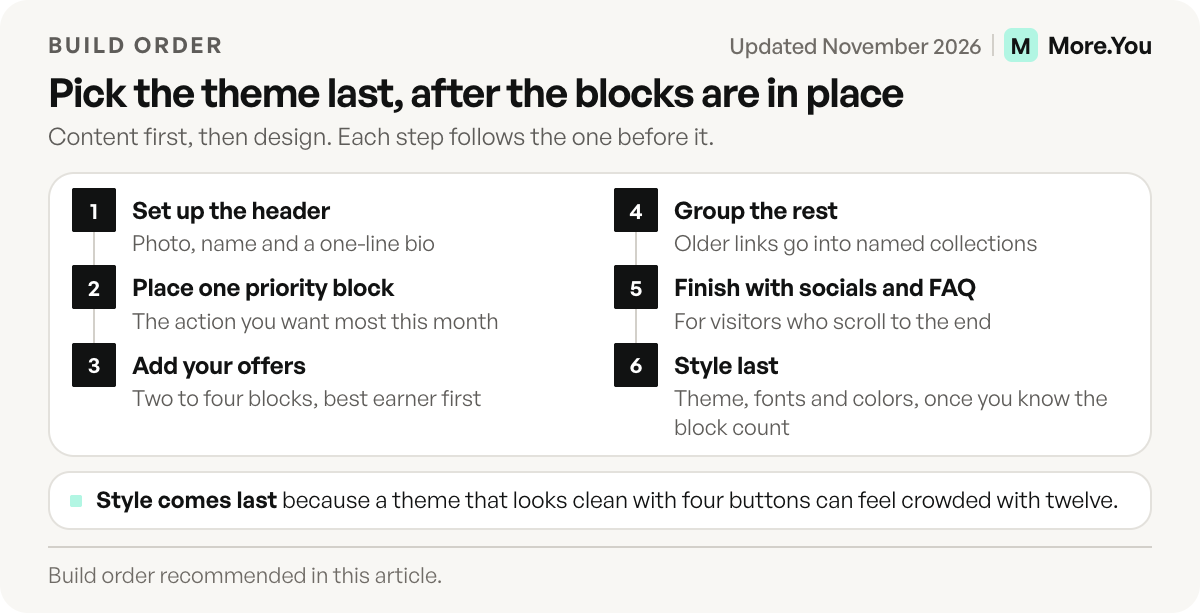
The reason for step 6 coming last is practical. A theme that looks clean with four buttons can feel crowded with twelve, and you only know your real block count after steps 1 to 5.
What goes where on the page
Every position on a bio page has a different job. Use this as the map when you drag blocks into place.
| Page zone | Job | Blocks that belong here |
|---|---|---|
| Header | Tell visitors who you are in one glance | Photo, display name, one-line bio |
| First 1 to 2 blocks | The one action you want most | Newest post, current launch, main product or booking |
| Middle | Things people come back for | Products, events, podcast episodes, music pre-saves |
| Lower | Everything else, grouped | Collections for archives, press, discount codes, older links |
| End | Stay in touch | Social icons, newsletter link, FAQ |
The top of the page gets the most attention. In Nielsen Norman Group’s 2018 eye-tracking study on desktop screens, people spent 57% of their viewing time above the fold (nngroup.com, April 2018). Treat the top of your page as the scarcest space you own. If a block has not earned a top slot in your click data for a month, drag it down.
Customize link cards and the page design
Once the order is set, styling makes the page look like your brand instead of the tool’s default. A drag and drop builder usually controls the same five layers: theme, background, buttons, type and color.
On More.You the design system covers a theme gallery (with a shuffle option when you want ideas), wallpapers, button styles, fonts and colors. Pick a theme for structure, then adjust color and font to match the rest of your brand.
Two rules keep a customized page readable:
- One accent color for buttons. If every button is a different color, none of them stands out.
- Contrast before mood. Light text on a busy wallpaper fails on a phone in daylight. Check the page on your own phone outdoors before you publish.
For layout patterns that work, see the walkthrough of link in bio templates. On More.You a template applies as replace or append, so you can add a template’s blocks under your existing page instead of starting over.
Add blocks that do more than link
The blocks that do the most work are rarely plain links. Three types turn a list into a page people stay on.
Offers with details. A product block carries a name and a price. An event block carries a date. A visitor knows what they get before they tap, and fewer taps end in a page they did not expect.
Releases. Music pre-save and podcast episode blocks point at the newest thing you made. They belong in the middle of the page, where returning visitors look for it.
A way to stay in touch. Social icons show where else you publish. A newsletter link near the end catches visitors who are not ready to buy. Someone who scrolled that far is interested, and an email list is the one audience no platform can take from you.
Group a long page with collections
As a rule of thumb, a flat page stays easy to scan up to eight or nine blocks. Past that, visitors stop reading labels and start scrolling.
Collections fix this. A collection block groups other blocks under one heading, so “Shop”, “Podcast” and “Press” become three sections instead of fifteen buttons. On More.You a collection renders as an expandable group. Name each collection for what the visitor wants, such as “Shop”, “Book a session” or “Listen”, never “More” or “Stuff”. Put the collection with the most clicks first, and keep the ones you rarely update at the bottom. The full method, including how many groups to use, is in the guide to organizing your link in bio into collections.
Preview and edit without breaking the live page
Editing a live page carries a risk: visitors arrive while you are halfway through a redesign. A good builder separates the draft from the published page.
On More.You, design edits go through a draft layer with undo, redo and cancel. The live page keeps showing your last published design until you finish and publish the draft. If the new theme looks wrong, you cancel and nothing changed for visitors.
Already have a page somewhere else? Paste its URL into More.You’s import and it proposes your header, avatar, socials and links. Nothing is written until you confirm each item, so you can drop old links on the way in. If you would rather start from your website or a short description, AI page generation writes a first page on every plan, and nothing is saved until you apply it.
Accessibility: why drag should not be the only option
Drag and drop is fast with a mouse and harder on a small touch screen or for anyone with limited motor control. The Web Content Accessibility Guidelines cover this directly. Success criterion 2.5.7, Dragging Movements, is Level AA and says all functionality that uses a dragging movement should also be possible with a single pointer without dragging (w3.org, November 2026).
When you compare builders, test reordering on your phone before you commit. If you plan to edit on the go, a tool where moving a block takes three precise drags is a tool you will stop updating.
Add your finished page to Instagram and TikTok
A finished page earns clicks only once its address sits in your profiles. The steps differ by app.
Instagram: open your profile in the app, tap Edit profile, then Links, then Add external link. Paste your page address and tap Done. Instagram allows up to five links on a profile, and the links feature is not available on computers (Instagram Help, checked November 2026).
TikTok: tap Profile, then Edit profile, then Add next to Links, and follow the steps. TikTok lets you add a website link once you have at least 1,000 followers or a Verified Business Account (TikTok Support, checked November 2026).
Use the same address in every profile. Then one reorder on your bio page updates what people see from every app.
Keep the layout current without redesigning
The best layout is the one that still matches what you post. Two habits keep it current.
Let the newest post move itself. On the Pro plan, More.You’s Auto-Pin puts the link from a scheduled social post at the top of the page when the post goes live. It steps down after 24 hours, 3 days or 7 days, whichever you set. The top slot stays current without you opening the editor. On Free, pin the link by hand.
Reorder from data, monthly. Check which blocks earn clicks and drag the winners up. If you want more tactics for the top slots, read how to get more clicks on your link in bio.
There is also an audience that never sees your drag and drop work: AI assistants. More.You is an AI-native link in bio platform, and it turns the blocks you arrange into structured data and a per-page llms.txt, so a product block is marked up as a product and an FAQ block as an FAQ. The order you choose for people, and the meaning you give each block, carry over to the agents reading the page. Create your More.You page and build it in the order above.
FAQ
Can I rearrange links on my link in bio page after publishing?
Yes. In a drag and drop builder you move any block up or down the stack and the published page follows. Reorder whenever your priorities change, such as a new launch, a sold-out product or a new episode.
Do I need coding skills to use a link in bio builder?
No. A link in bio builder works with blocks you add and drag into place. Themes, fonts, colors and button styles are set from menus, so the page looks finished without writing HTML or CSS.
How many links should a link in bio page have?
Keep the flat part of the page under about eight or nine blocks. Past that, group extra links into collections so visitors scan section headings instead of reading every button.
What should go at the top of my link in bio?
Your header, then the one action you most want a visitor to take right now, usually your newest post, current launch or main product. Move it down once it stops earning clicks.
Can I preview changes before they go live?
Not every builder offers it. On More.You, design changes sit in a draft with undo, redo and cancel, and the live page keeps showing the last published design until you publish the draft.
Sources
- Dragging Movements, Understanding Success Criterion 2.5.7, WCAG 2.2 (w3.org, November 2026)
- Nielsen Norman Group: Scrolling and Attention (April 2018)
- Instagram Help: Add a website to your Instagram profile
- TikTok Support: Adding a website link to your profile
- More.You feature pages: more.you/features/bio-page-blocks, more.you/features/design-themes, more.you/features/templates, more.you/features/import, more.you/features/ai-page-generation, more.you/features/auto-pin and more.you/features/ai-native-pages (November 2026)
Platform rules and prices checked November 2026.