An event landing page is one page that holds everything a guest needs to say yes: the event name, the date and time with its time zone, the venue, one ticket or RSVP button, the lineup, photos from last time, answers to common questions and the organizer’s contact. In that order, a guest can decide without messaging you first.
A guest who finds your event on social media meets it on a phone, usually from a Reel, a Story or a poster. They tap once and give the page a few seconds. If the date sits in a caption, the venue in a comment and the tickets three taps away, they close the tab and the seat stays empty.
This guide covers the eight elements in reading order, a worked workshop example, setups for five event types, when to send people straight to the ticketing page, and how to run small events from your bio page.
Key Takeaways
- Eight elements, one order: name, date and time zone, venue, ticket button, lineup, photos, FAQ and contact, top to bottom.
- One main button: the ticket or RSVP button sits above the first scroll and opens the checkout for that exact date.
- Show the total price or no price: in the US, a federal rule requires the total ticket price, mandatory fees included, wherever a live-event ticket price is shown.
- A bio page can be the event page: for small events, an event block per date, a pinned ticket link, an FAQ block and a few link blocks cover all eight elements.
What is an event landing page?
An event landing page is a page built to turn a visitor into a guest for one event or one run of dates. It answers what, when, where and how much, and it has one main action: buy a ticket, book a seat or RSVP. An event website is the bigger version, with separate pages for a festival or conference program, speakers, travel and sponsors.
The format sits close to a one page website: one address, one scroll, one main action. The difference is the date: an event page changes the day tickets sell out, the day the event ends and the day the next one is announced.
The 8 elements of an event landing page
Arrange the page in the order a newcomer’s questions come up, so nobody scrolls back up to find the date.
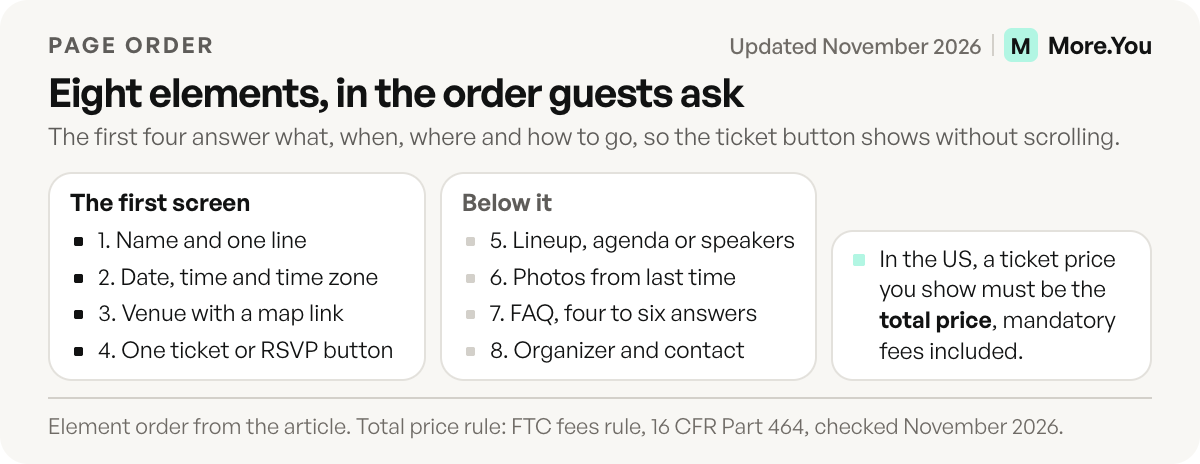
1. Event name and one line
Use the name people will say out loud, then one line on what it is and who it is for: “Saturday screen-printing class for beginners, all materials included.” Twelve words or fewer is plenty.
2. Date, start time and time zone
Write the weekday, the date, the door time and the start time, then the time zone: “Sat 6 Feb, doors 6:30 pm, start 7 pm CT.” Guests who travel, and anyone who joins online, read times in their own zone. A multi-day event lists each day with its own hours.
3. Venue and a map link
Name the venue and the street address, and link the address to a map so one tap opens directions. Add the details people ask at the door: which entrance, where to park, whether there is step-free access.
4. One ticket or RSVP button
Place a single button where it shows without scrolling, and point it at the checkout for that exact date. Label it with the action, such as “Get tickets”, “Book a seat” or “RSVP”.
If the page shows a price, show the total the buyer pays. In the US, the FTC’s Rule on Unfair or Deceptive Fees bans displaying a live-event ticket price without clearly showing the total price, mandatory fees included (checked November 2026). The total must also stand out more than any other price detail. Government charges, shipping and optional extras may stay outside that total. The FTC’s guidance on the rule names concerts, sporting events, theater and other live performances. Or leave the price to the checkout page.
5. Lineup, agenda or speakers
Say who plays, teaches or speaks, and in what order. Set times answer “when should I arrive” before anyone types it into your DMs. For a class, list what people will make or learn.
6. Photos from the last edition
Show a real photo of the room from last time, a short recap clip or a press quote linked to the outlet. A first edition shows the venue and the host instead.
7. FAQ
Answer the questions that would otherwise arrive one by one: age limit, refunds, accessibility, what to bring, parking and bag policy. Four to six answers cover most events.
8. Organizer and contact
Say who runs the event and how to reach them: an email for access requests and group bookings, plus your social profiles.
Example: an event landing page for a workshop
For illustration, here is a made-up Saturday screen-printing class in Austin, filled in element by element. The price is invented to show the “total price” rule in practice.
| Element | What the guest asks | Workshop example |
|---|---|---|
| Name and line | What is it? | ”Print Your Own Tote: screen printing for beginners, 3 hours” |
| Date and time | When? | Sat 6 Feb 2027, 10 am to 1 pm CT |
| Venue | Where? | Studio name, street address, map link, parking behind the building |
| Button | How do I go? | ”Book a seat”, $45 total per person |
| Lineup | Who teaches what? | The host’s name, two tote designs to choose from, 12 seats |
| Photos | Is it any good? | Photos from the last class, a 20-second recap clip |
| FAQ | What else should I know? | Materials included, ages 16 and up, refunds until 48 hours before |
| Contact | Who runs it? | Studio email, Instagram profile |
Behind the page, Event structured data describes the same class to search engines and AI systems. This sample uses fields from Google’s documentation, with the UTC offset in each time:
{
  "@context": "https://schema.org",
  "@type": "Event",
  "name": "Print Your Own Tote: Screen Printing for Beginners",
  "startDate": "2027-02-06T10:00:00-06:00",
  "endDate": "2027-02-06T13:00:00-06:00",
  "eventStatus": "https://schema.org/EventScheduled",
  "eventAttendanceMode": "https://schema.org/OfflineEventAttendanceMode",
  "location": {
    "@type": "Place",
    "name": "Example Print Studio",
    "address": {
      "@type": "PostalAddress",
      "streetAddress": "100 Example Street",
      "addressLocality": "Austin",
      "addressRegion": "TX",
      "addressCountry": "US"
    }
  },
  "offers": {
    "@type": "Offer",
    "url": "https://tickets.example.com/print-your-own-tote",
    "price": "45",
    "priceCurrency": "USD"
  }
}
Event landing page examples by event type
The eight elements stay the same for every event. What changes is the main button, the detail people check first and the questions they ask.
| Event type | Main button | Detail people check first | FAQ to answer |
|---|---|---|---|
| Concert or gig | Tickets for this date | Doors and set times, age limit | Bag policy, re-entry, accessible seating |
| Workshop or class | Book a seat | What you make or learn, skill level | What to bring, refunds, materials |
| Pop-up or market | Get directions | Hours each day, the exact spot | Card or cash, parking, pets |
| Club night | Tickets or guest list | Age, last entry, lineup times | ID rules, dress code, cloakroom |
| Talk or conference | Register | Agenda and speakers | Recording, accessibility, travel |
A concert with a run of dates repeats elements 2 to 4 once per show. Musicians who tour can copy the tour section of a musician’s bio page, with the next show at the top.
Your own event page or the ticketing page?
Your posts decide where the traffic lands. Instagram opened link stickers in Stories to all accounts in October 2021, so a Story and your profile link can both point at the same event page. Pick the target by the situation:
| Situation | Send people to |
|---|---|
| One date, one ticket type, nothing to explain | The ticketing page for that date |
| Several dates or several event types | Your own page, one entry per date |
| Posters, flyers and table cards | Your own page, through a QR code |
| The same questions keep arriving in DMs | Your own page, with an FAQ |
Printed material outlives the date it advertises. A QR code that points at your bio page keeps working when the date moves or a second show is added.
Running small events from your bio page
More.You is an AI-native link in bio platform. Every page it publishes carries an llms.txt file and an agent manifest, and event blocks add Event structured data to the page.
A link in bio page already sits where your event posts send people, so it can carry all eight elements without a second site:
- Name and date: one event block per date, dragged into date order.
- Venue: a link block that opens the map.
- Ticket button: a link to the checkout for the next date, pinned to the top of the page.
- Lineup and photos: link blocks to the lineup post, the recap Reel or the gallery.
- FAQ: an FAQ block, which also adds FAQPage structured data.
- Organizer and contact: social icons and a contact link at the bottom.
- A venue with regular hours: an opening hours block with a live open-now label.
Every block reports its own views and clicks, so you can see whether people tap the ticket link or stop at the FAQ. The Free plan keeps 30 days of that history.
Event structured data: what Google reads
Google’s event structured data documentation lists four required properties: name, startDate, location and the location’s address (checked November 2026). Four of its rules shape the page:
- Time zone: include the UTC offset in the start time. Without one, Google uses the time zone of the event’s location.
- One event per page: Google’s event search experience supports pages that focus on a single event, and Google recommends marking up event pages over pages that list schedules. A ticketing page for each date fits that rule, and a page with a season of dates works as the hub your posts point to.
- Status changes: when an event is cancelled or postponed, keep the original startDate and location and change the eventStatus. For a new date, set eventStatus to EventRescheduled, update startDate and add previousStartDate.
- Who qualifies: the event must take place in a physical location and be bookable by the general public.
On More.You, structured data comes from your blocks: Event from event blocks and FAQPage from the FAQ block, on every plan. The guide to structured data on creator pages covers the other block types.
Before and after the event: a checklist
- Test on a phone. Load the page with Wi-Fi off and try every button, including the map link.
- Check the date twice. The date, time and time zone on the page match the ticketing page.
- Show the total, or no price. If the button or the page names a price, it is the full amount a buyer pays, as the US rule above requires.
- Say “sold out” the same day. Change the button label or swap it for the waitlist link.
- Postponed or cancelled? Put it at the top that day. On a site you build yourself, also change eventStatus and keep the original startDate, as Google asks.
- Turn the page over after the event. Replace the ticket button with the recap and the next date.
Build the page for your next date
On More.You, add an event block for each date, pin the ticket link to the top and answer the door questions in an FAQ block. All three are on the Free plan, and the event and FAQ blocks add structured data to the page. Create your More.You page before you post the announcement, so the first tap lands on the date.
FAQ
What should an event landing page include?
It should include the event name and a one-line description, the date and start time with the time zone, the venue with a map link, one ticket or RSVP button, the lineup or agenda, photos from a past edition, a short FAQ and the organizer’s contact details.
What is the difference between an event page and an event website?
An event page is one page with one main action, such as buying a ticket. An event website has several pages, such as the program, speakers, travel and sponsors, and suits festivals and conferences.
Can I use my link in bio as an event landing page?
Yes, for small events and recurring nights. A bio page with one entry per date, a pinned ticket link and an FAQ covers what guests need, and it sits where your posts already send people.
Can I make an event landing page for free?
Yes. A free bio page can hold all eight elements: an event block per date, a pinned ticket link, an FAQ block and link blocks for photos and contact. On More.You, every block type is on the Free plan.
Do I need a separate landing page for every event?
Not for your guests, who can scan several dates on one page. Google’s event search experience works with one page per event, and a ticketing page for each date already gives you that.
Sources
- Google Search Central: Event structured data, last updated September 2026, checked November 2026
- eCFR: 16 CFR Part 464, Rule on Unfair or Deceptive Fees, November 2026
- FTC: Rule on Unfair or Deceptive Fees, frequently asked questions, May 2025
- Instagram: Expanding sharing links in Stories to everyone, October 2021
- More.You features: blocks and AI-native pages (more.you/features/bio-page-blocks, more.you/features/ai-native-pages, November 2026)
Platform rules and prices checked November 2026.