Learning how to add links to YouTube description boxes takes five steps: open YouTube Studio, select Content, click the video, paste the full URL (starting with https://) into the Description box and click Save. On a phone, the YouTube Studio app has the same Edit screen. On long-form videos the link becomes clickable after YouTube grants your channel advanced features. Shorts descriptions never make links clickable.
You film for a week, upload, and paste your shop link into the description. Then a viewer comments “where’s the link?” because it sits as grey text, or it hides under six lines of credits nobody expands. A link that stays plain text has one of four causes, and each has a fix you can make in YouTube Studio.
This guide gives the exact steps on desktop and mobile, the URL format YouTube needs, a fix table for links that stay plain text, a copy-paste description template with chapters, and UTM tags so you can see which video sent the click. It is for creators who post long-form videos and Shorts and want viewers to reach their shop, booking page or newsletter.
Key Takeaways
- Five clicks on desktop: YouTube Studio, Content, the video, paste the URL in Description, Save.
- Paste the whole address: copy it from the browser bar so it starts with https:// and has no spaces.
- Advanced features make links clickable: check Settings > Channel > Feature eligibility in YouTube Studio if your link stays plain text.
- Shorts need a different route: use the related video link or your channel profile links, because Shorts descriptions do not make URLs clickable.
- Put one link in the top lines: viewers see the start of the description before they tap more, so the link that matters goes first.
How to add links to YouTube description on desktop
Adding a link to a YouTube description on a computer takes five steps in YouTube Studio. You can do it during upload or edit any published video later, and the change goes live as soon as you save. YouTube allows up to 5,000 characters in a description, so space is rarely the limit. Placement is the limit.
Follow the path in YouTube’s edit video settings page (checked November 2026):
- Sign in to YouTube Studio at studio.youtube.com.
- In the left menu, select Content.
- Click the title or thumbnail of the video you want to change.
- Click into the Description box and paste your full URL on its own line.
- Click Save.
Then play the video, tap more under it and tap your link. Repeat the test on your phone. If it opens the right page, you are done. If it stays grey, jump to the fix table below.
How to put a link in a YouTube description on your phone
To put a link in a YouTube description on your phone, use the YouTube Studio app. The steps are the same on Android and iPhone, per YouTube’s help pages for Android and iPhone (checked November 2026):
- Open the YouTube Studio app.
- Tap Content in the bottom menu.
- Select the video.
- Tap the Edit (pencil) icon.
- Tap the description, paste the URL and tap Save.
The main YouTube app works too. Tap your profile picture, then Your videos, then the three-dot menu next to the video, then Edit. Pasting on a phone is where most typos happen: a long press can grab half a URL or add a space at the end. Copy the address from the browser bar, not from a chat message that shortened it.
How to format a URL so YouTube makes it clickable
A YouTube description link becomes clickable when YouTube reads it as a full web address. Write the protocol, the domain and the path with nothing between them. Put each link on its own line, or after a colon and a space, so no word touches the start or end of the URL.
| Format in the description | What viewers see |
|---|---|
| https://yourshop.com/presets | A clickable link |
| yourshop.com/presets | May stay plain text, so add https:// |
| https://yourshop.com/ presets | A link that stops at the space and opens the wrong page |
Keep the URL as written on the page you copied. Shortened links from unknown services can look suspicious to viewers, and YouTube’s external links policy lets it remove any link it cannot verify as safe (checked November 2026).
Why your YouTube description link is not clickable
A YouTube link stays plain text for one of four reasons: the format, the video type, your channel’s feature access or the link policy. YouTube’s page on sharing links says long-form description and comment URLs need advanced features to be clickable, while URLs typed under a Short or in its comments stay plain text (checked November 2026).
| Cause | How you spot it | Fix |
|---|---|---|
| Missing https:// or a space inside the URL | The link is grey or cut in half | Paste the full address again from the browser bar |
| The video is a Short | Every link in the description is grey | Add a related video, or say on screen that the link sits on your channel page |
| No advanced features | Links are grey on every long-form video | Turn on advanced features in YouTube Studio (steps below) |
| The link breaks the external links policy | The link or the video was removed, with an email from YouTube | Replace it with a destination that follows the Community Guidelines |
Turn on advanced features. YouTube’s feature access page puts clickable long-form description links in its advanced tier (checked November 2026). In YouTube Studio, go to Settings, then Channel, then Feature eligibility, and look for “Enabled”. Verifying your phone number gives you intermediate features. Advanced features come with enough channel history, or sooner if you verify with an ID or a video, though YouTube says those two options are not available to every creator.
Read the link policy before you paste. The policy covers clickable URLs, URLs shown inside the video, disguised URLs and telling viewers out loud to visit a site. Links to malware, phishing, pirated paid content or regulated goods are banned. A first violation usually brings a warning, and three strikes within 90 days can end a channel. Affiliate links are allowed, but YouTube’s spam rules apply to accounts that post affiliate content excessively.
How to add a related video to a Short
A Short cannot hold a clickable URL, so the related video link is the route out. YouTube’s related video page gives the path (checked November 2026): in YouTube Studio, select Content, click the Short, then select Related Video and choose the video to show. The related video can be a video, a Short or a Live stream. It must be public or unlisted and follow the Community Guidelines.
Choose a long-form video whose first description lines carry your bio page link. The viewer taps from the Short to that video, then taps the link. Say “link in the video I picked” on screen so the viewer knows where to tap.
How many links to put in a YouTube description, and in what order
YouTube sets no link count for descriptions, only the 5,000-character limit. The useful number is smaller. Viewers see the top of the description under the video and must tap more to see the rest, so the first lines carry the click. One primary link up top, one “everything else” link, then the rest below the chapters.
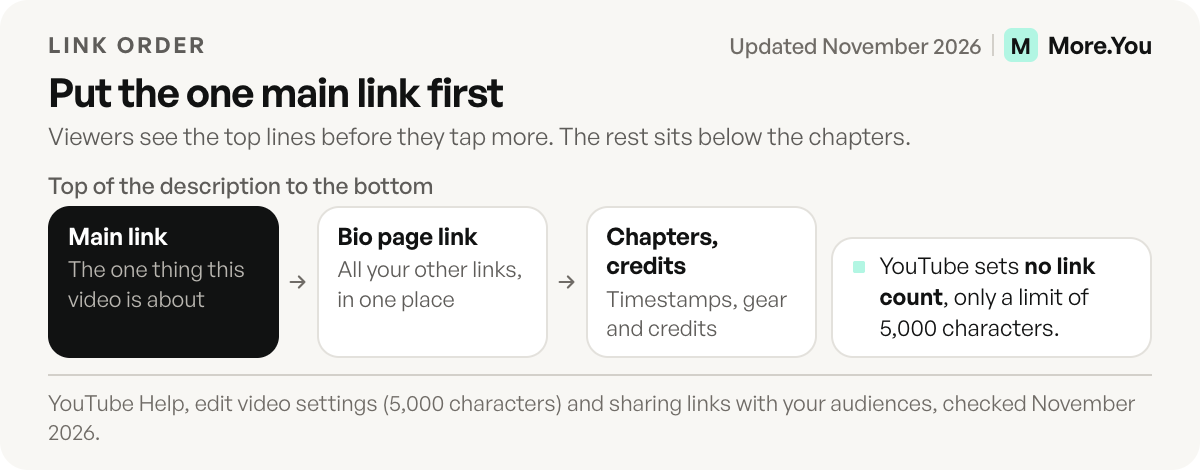
Here is that order as a template you can paste and fill in. The placeholders are in square brackets.
[One sentence: what this video gives the viewer.]
[The one thing this video is about]: https://yourshop.com/[product]?utm_source=youtube&utm_medium=description&utm_campaign=[video-name]
All my links: https://more.you/[yourname]

00:00 [Intro]
00:45 [Chapter two]
03:10 [Chapter three]
06:20 [Results]

[Two to four sentences about the video, written for search.]

Correction:
03:25 [What was wrong and the right version]

Gear and credits:
[Item]: https://[link]
Chapters follow YouTube’s rules. The video chapters page says the first timestamp must be 00:00, you need at least three timestamps in ascending order, and each chapter must be at least 10 seconds long (checked November 2026). Chapters you type override the automatic ones.
Corrections go after the chapters. YouTube’s edit settings page says a “Correction:” or “Corrections:” line, in English whatever the video’s language, must sit after any chapters. Viewers then see a View Corrections card. The sibling guide on where to put YouTube channel links covers pinned comments, end screens and Posts if you want more places than the description.
How to track clicks from a YouTube description
To see which video sent a visitor to your shop or website, add UTM parameters to the link. Google Analytics’ URL builder guide says to always use utm_source, utm_medium and utm_campaign, and treats values as case-sensitive, so “YouTube” and “youtube” become two rows (checked November 2026).
Pick one naming scheme and keep it on every video:
https://yourshop.com/presets?utm_source=youtube&utm_medium=description&utm_campaign=lightroom-presets-tutorial
https://yourshop.com/presets?utm_source=youtube&utm_medium=pinned-comment&utm_campaign=lightroom-presets-tutorial
The campaign names the video. The medium names the spot on YouTube, so you can compare a description link with a pinned comment link on the same upload. Our guide to UTM parameters for creators covers utm_content and the naming mistakes that split one campaign into many rows.
Point every YouTube description at one bio page
More.You is an AI-native link in bio platform. The Free plan gives you one page with every block type and basic analytics of views and clicks, so one address in your descriptions shows which offer viewers want. Each page also ships an llms.txt file and structured data built from its blocks, so an AI assistant asked about your channel can read the same links your viewers tap.
One address also fixes the upkeep problem. For illustration, a channel with 200 videos has 200 descriptions, and changing a shop URL by hand means opening each one. When the description points at a link in bio page, you change the page once and every old video sends viewers to the new link. More.You adds UTM tags to the outbound clicks from your page, and on Pro, attribution ties each click back to the post that sent it. For the numbers worth watching once traffic arrives, see how to track link in bio clicks.
Paste one line under your next upload, “All my links:”, followed by your page address. Create your More.You page with a product block for your shop, an event block for your next live stream and a booking block for sponsors, and the description link stays right as your offers change.
FAQ
Why can’t I add a clickable link to my YouTube description?
Your channel probably does not have advanced features yet. In YouTube Studio, open Settings, then Channel, then Feature eligibility. Verify your phone number first, then build channel history or verify with an ID or a video to get advanced features. Also check that the URL starts with https:// and has no spaces.
How do I add a link to a YouTube Short?
A URL typed under a Short stays plain text. In YouTube Studio, open Content, click the Short, choose a Related Video from your channel and save. Viewers see that link below your channel handle. Pick a full-length video that carries your link in its first lines. This needs advanced feature access.
How many links can I put in a YouTube description?
YouTube sets no link count, only a 5,000-character limit for the description. Put one main link and one link to your bio page in the first lines, because those show before viewers tap more. Credits and gear links can go lower, below the chapters.
Can I add links to my YouTube channel instead of every video?
Yes. YouTube lets you show up to 14 channel profile links, and the first one appears near the Subscribe button. In YouTube Studio, select Customization, then Profile, then Add link under Links, enter a title and the URL, and click Publish.
Do I need https:// for a YouTube link to work?
Paste the full address with https:// to be safe. Copy it from your browser’s address bar, put it on its own line, and check after saving that it opens the right page on desktop and on your phone.
Sources
- YouTube Help, Edit video settings: desktop and mobile edit steps, the 5,000-character description limit, the corrections format and the related video setting (checked November 2026)
- YouTube Help, Sharing links with your audiences: which links are clickable, Shorts description and comment links, the 14 channel profile links (checked November 2026)
- YouTube Help, Learn about feature access for YouTube Creators: standard, intermediate and advanced features, and the Feature eligibility path (checked November 2026)
- YouTube Help, External links policy: banned link types, warnings and strikes (checked November 2026)
- YouTube Help, Video Chapters: the 00:00, three-timestamp and 10-second rules (checked November 2026)
- YouTube Help, Add a related video to your YouTube Shorts: steps and advanced feature access (checked November 2026)
- YouTube Help, Manage your YouTube channel’s profile: channel profile link steps (checked November 2026)
- Google Analytics Help, URL builders: collect campaign data with custom URLs: required UTM parameters and case sensitivity (checked November 2026)
- More.You features: more.you/features/bio-page-blocks, more.you/features/ai-native-pages and more.you/features/analytics-attribution (attribution on Pro per more.you/pricing, November 2026)
Platform rules and prices checked November 2026.