
To migrate from Linktree, list every link on your page, export the data Linktree lets you download, and rebuild the page on your new tool. Then swap the URL in every bio, leave a “We’ve moved” link on the old Linktree for about 30 days, and only then cancel and delete. The order matters: Linktree’s help center says a deleted Linktree URL stops working and can’t be recovered.
The common mistake is the order. You build the new page, delete the old one the same evening, and find out a week later that a podcast description, a printed flyer and three YouTube videos still point at a dead URL. Those clicks never show up as an error. They stop.
This guide gives the safe order. It works for any destination tool, takes every Linktree fact from Linktree’s own help center (checked November 2026), and shows where your old URL hides before you turn it off.
Key Takeaways
- Delete last, never first. A deleted Linktree URL stops working, your links and data can’t be recovered, and the username is locked for 14 days (linktr.ee/help, November 2026).
- Export before you cancel. The Insights CSV export is listed as a Premium feature, so download it while your plan is still active.
- Don’t rename your Linktree username. Your link changes with your username, so a rename breaks the old URL the moment you save it.
- Your old URL lives in more places than your bio. Video descriptions, show notes, email signatures and printed QR codes all need a sweep.
- Run both pages for about 30 days. A “We’ve moved” link at the top of the old page catches the traffic you missed.
How do you migrate from Linktree, step by step?
You migrate from Linktree in seven steps: inventory the page, export your data, build the new page, tag the new links, swap every bio, forward the old page, then cancel and delete. Steps 1 to 4 happen before anyone sees a change. Steps 5 to 7 run over about a month.
| Step | What you do | When |
|---|---|---|
| 1. Inventory | Screenshot the page, copy every link title, URL and its order | Day 1 |
| 2. Export | Download Insights and audience data while your plan is active | Day 1 |
| 3. Rebuild | Recreate the page on the new tool, or import it from the URL | Day 1 |
| 4. Tag | Add UTM parameters so the new links report by source | Day 1 |
| 5. Swap | Replace the old URL in every bio and description | Days 1 to 7 |
| 6. Forward | Add a “We’ve moved” link to the top of the old Linktree | Day 1 to day 30 |
| 7. Retire | Cancel the paid plan, then delete the Linktree | After day 30 |
Step 1: Take a full inventory of your Linktree page
Open your public Linktree page, not the admin, and screenshot it top to bottom. The public page shows what visitors see, including the order. Then copy each link into a sheet with four columns: title, destination URL, position, and whether it’s still worth keeping.
Capture the parts people forget: your avatar file, the exact bio line, social icons, any featured or highlighted link, and anything that isn’t a plain link (a contact form, a product, a booking). We found no Linktree help article for exporting your link list, so treat the screenshot and the sheet as your only full backup.
This is also the moment to cut. Links to a sold-out drop, a finished giveaway or an old podcast episode don’t need to make the move.
Step 2: Export your Linktree data before you cancel
Linktree’s help center documents two downloads, and both live behind your current plan, so do this before you change anything.
Insights. Go to Insights, open the Linktree activity section, pick a date range and select Download CSV. You get a ZIP of five CSV files: Activity (views, clicks and click-through rate), Cities, Countries, Devices and Referrers. The article lists this as available on Premium plans (linktr.ee/help, November 2026). Pick the widest date range you can. On Free, Starter or Pro, copy the numbers from the Insights screen instead. It keeps 28 days of history on Free, 90 days on Starter and 365 days on Pro (linktr.ee/help, November 2026).
Audience. If you collected emails or phone numbers through Linktree, the Audience tab has a CSV export under Integrations, protected by a passcode you set and sent to your account email. Both help articles that describe this export are labelled for Pro and Premium plans (linktr.ee/help, November 2026). These contacts are the one asset you can’t rebuild later.
Write down three baseline numbers: average weekly views, weekly clicks and click-through rate. You’ll compare the new page against them in step 7.
Step 3: Rebuild the page on your new tool
You have two ways to rebuild. Retype it from your sheet, or use an importer that reads your public Linktree URL and proposes the content for you. Retyping takes longer but forces a cleanup. An importer is faster, and a good one asks you to confirm each item instead of copying everything blind.
Rebuild the content first and the design second. Themes, button styles and wallpapers rarely carry across tools, so plan to restyle on the new platform. If you’re still choosing where to go, our comparison of Linktree alternatives covers what each tool is built for.
Before you share the new URL, open it on your phone and tap every link once. A broken link on day one costs you the click from your most engaged followers.
Step 4: Tag the new links so the switch is measurable
A migration is the cleanest moment to fix tracking, because every link is new anyway. Add UTM parameters to each destination you own, so your store or newsletter reports which bio sent the visit. Use the same source naming on every link, such as utm_source=instagram and utm_medium=bio. A tagged shop link looks like this:
https://yourshop.com/new-drop?utm_source=instagram&utm_medium=bio&utm_campaign=new-bio-pageWrite every value in lowercase, because Google Analytics treats “Instagram” and “instagram” as two sources. A social source such as instagram lands in Organic Social. A source that is not on Google’s list of social sites, such as podcast with medium bio, lands in Unassigned, so give those links utm_medium=social.
Without tags, you can’t answer the main question in step 7: did the new page send as much traffic as the old one? The full naming scheme is in our guide to UTM parameters for creators.
Step 5: Find every place your old Linktree URL lives
Swapping your Instagram bio takes a minute. The work is everywhere else. Search your own accounts for “linktr.ee/yourname” and go down this list, highest traffic first.
| Where the old URL hides | How to find it | Priority |
|---|---|---|
| Instagram, TikTok, YouTube, Threads, X, Pinterest bios | Open each profile’s edit screen | Day 1 |
| Pinned comments and pinned posts | Check the top of each profile | Day 1 |
| YouTube video descriptions | Search descriptions in YouTube Studio | Week 1 |
| Podcast show notes | Edit the template in your hosting tool | Week 1 |
| Email signature and newsletter footer | Your email client and email tool settings | Week 1 |
| Media kit, rate card, brand decks | Search your drive for “linktr.ee” | Week 1 |
| Printed QR codes on flyers, packaging, merch | Check which URL each code points to | Before you delete |
Printed QR codes need care. Linktree says codes made with its own QR tool point to a unique URL, so they survive a username change. A code you made yourself that points at your linktr.ee address does not (linktr.ee/help, November 2026). Neither case is safe after you delete the account. Reprint before you delete, or use a QR code for your link in bio that you control.
Step 6: Forward the old page instead of deleting it
Leave the old Linktree live and put one link at the top: “We’ve moved, tap here for the new page”, pointing at your new URL. Remove or hide the other links so visitors don’t keep using the old page out of habit.
On Starter, Pro or Premium, Linktree’s Redirect setting can forward visitors instead. It sends every visitor straight to one link until a time you set. In Edit, open the link in the Links tab, choose Power-ups, Prioritize and Redirect, then set the end time in Active until. When the redirect ends, Linktree restores your page on its own (linktr.ee/help, November 2026).
Two things not to do here. Don’t change your Linktree username to “free up” the name: Linktree’s help says your link changes with your username, it doesn’t say the old one redirects, and you can only change it once every seven days (linktr.ee/help, November 2026). And don’t delete yet. The forwarding link is your safety net for every place you missed in step 5.
Keep the forward running for about 30 days, or one full posting cycle if you publish less than weekly. Watch the old page’s clicks fall. When they drop to almost nothing, the sweep is done.
Step 7: Compare the numbers, then cancel and delete
Put the new page’s first 30 days next to the baseline from step 2. Similar weekly clicks means the migration held. A big drop usually means a high-traffic place still points at the old URL. If you exported Insights, the Referrers file shows where the old traffic came from.
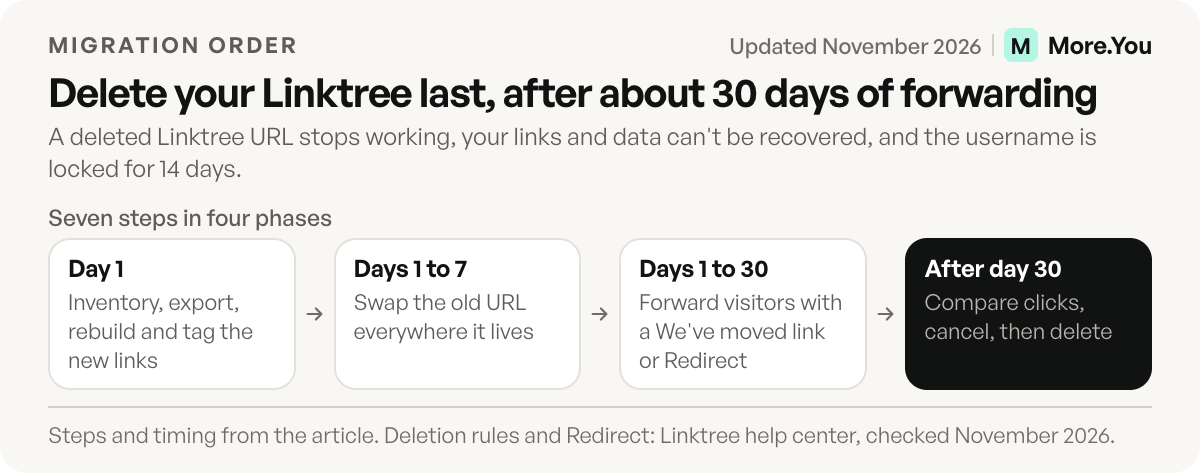
Cancel the paid plan first if you only want to stop paying, since Linktree treats cancelling and deleting as separate actions. Delete last. In Settings, open Account management and select Delete account under Manage account deletion. Linktree’s help center states that when you delete, your Linktree URL stops working, your links and data can’t be recovered, and you can’t reuse the same username or email for a new account for 14 days (linktr.ee/help, November 2026). If you run several Linktrees, select the three dots next to one to delete only that one. The others stay live.
What doesn’t carry over when you switch?
Your content carries over. Your history mostly doesn’t. Analytics stay with the old tool except for what you exported in step 2. The design gets rebuilt. Followers who saved the old URL rely on your forwarding link.
The address doesn’t carry over either. Every Linktree page lives on a linktr.ee address, and Linktree’s help center says it doesn’t support custom domains (linktr.ee/help, November 2026). If your new tool supports a domain you own, put the new page there before step 5. The next time you change tools, you point the domain at the new page, and every printed code and old description keeps working.
If you’re rebuilding anyway, read what a link in bio is for and decide what deserves a spot before you add the old links back.
Where More.You fits
More.You publishes this blog. If More.You is your destination, you don’t retype anything. Paste your Linktree URL and More.You proposes your header, avatar, socials and links, and nothing is written until you confirm each item. Import is on the Free plan. The full flow is in our guide to importing your link in bio to More.You.
More.You is an AI-native link in bio platform. Every page, on every plan, ships an llms.txt file, an agent manifest and structured data, so AI assistants can read it too. On Pro, Auto-Pin puts your newest post at the top on its own and attribution shows which post drove the clicks. Create your More.You page and run both pages side by side during your 30 days.
FAQ
Can you export your links from Linktree?
We found no Linktree help article for exporting your list of links. Linktree documents a CSV export of Insights, listed as a Premium feature, and a CSV export of audience contacts. Copy your links by hand from the public page, or use a tool that imports from your Linktree URL.
Does Linktree redirect to my new page after I delete my account?
No redirect is described. Linktree’s help center says your Linktree URL stops working when you delete it, your links and data can’t be recovered, and the username can’t be reused for 14 days. Before you delete, forward visitors for about 30 days with a “We’ve moved” link, or with the Redirect setting on Starter, Pro or Premium.
How long does it take to migrate from Linktree?
Rebuilding the page is the quick part, and quicker with an importer. The full migration takes about 30 days, because the old page should forward visitors while you update every bio, description and QR code that still points at it.
Will I lose my Linktree analytics if I switch?
Your history stays in Linktree and disappears if you delete the account. Download the Insights CSV before you cancel. It’s listed as a Premium feature and contains activity, cities, countries, devices and referrers. The new tool starts counting from zero.
Can I change my Linktree URL?
You can change the username part once every seven days, under Settings, Account management and the three dots next to your username. The linktr.ee part stays the same. Your link changes with the username, and Linktree’s help doesn’t say the old link redirects, so update every bio and description that shows the old address.
Sources
- How to delete your Linktree account or profile (linktr.ee/help, November 2026)
- Change your Linktree username (linktr.ee/help, November 2026)
- Download a CSV of your Insights activity (linktr.ee/help, November 2026)
- Setting up third-party audience integrations, and How to collect email sign-ups on your Linktree (linktr.ee/help, November 2026)
- Prioritize a link, for the Redirect setting (linktr.ee/help, November 2026)
- Can I change the Linktree URL to a custom domain? (linktr.ee/help, November 2026)
- Linktree Pro features overview, for Insights history by plan (linktr.ee/help, November 2026)
- Default channel group, Google Analytics Help (November 2026): the Organic Social rule
- URL builders: collect campaign data with custom URLs, Google Analytics Help (November 2026): case-sensitive values
- More.You feature pages: more.you/features/import, more.you/features/auto-pin, more.you/features/analytics-attribution and more.you/features/ai-native-pages (November 2026)
- More.You pricing (more.you/pricing, November 2026)
Platform rules and prices checked November 2026.