
A Google review link takes a customer straight to leaving a review on your Business Profile, without searching for you first. To get it, sign in to the Google account that manages your profile, open the profile, select Read reviews, then Get more reviews, and select Copy. On a computer, the same screen gives you a QR code you can download and print.
Plenty of happy customers never think to review you. Asking is your job, and the ask works best when the next step is one tap. Each extra step is a place to give up: opening Maps, finding the right location, scrolling to the review button.
This guide gives you the official steps, 8 places to share the link, three request messages you can copy, and the rules Google and the US Federal Trade Commission set on asking for reviews. It is written for shops, cafés, salons, studios and service pros who meet customers face to face.
Key Takeaways
- Copy it from your profile. Open your Business Profile, select Read reviews, then Get more reviews, then Copy.
- Make the QR code on a computer. Google creates the review QR code only in a computer browser. Any QR generator also works with the copied link.
- Share it where every visit ends. Receipts, emails, texts, a counter sign and your bio page reach every customer, not only the happy ones.
- No rewards, no gating. Google bans discounts or freebies for any review, and it bans asking only satisfied customers.
How to get your Google review link
Your review link comes from your Business Profile, so you copy it while signed in to the account that manages the profile. Open the profile, select Read reviews, then Get more reviews, and select Copy. Google documents these steps for a computer browser, which is also the only place you can download the review QR code.
On a computer
- Sign in to the Google account that manages your profile, then search Google for “my business”, or for your business name and city.
- On your Business Profile, select Read reviews, then Get more reviews.
- Select Copy. To save the QR code too, right-click it and choose Save image as.
These steps come from Google’s help page on creating a link or QR code to request reviews (checked November 2026).
On a phone
On a phone, search “my business” in the Google app, or open the Google Maps app and tap Business at the bottom right, as Google’s page on finding your business describes. Then look for the option to get or ask for reviews and copy the link. If your app shows no such option, copy the link once on a computer and save it on your phone.
If someone else manages the profile
Ask an owner to add you as a manager. Google’s page on owners and managers says managers can edit info and respond to reviews, each with their own Google account, so nobody shares a password. A business with two shops has two profiles and two links: label each by street, so customers review the place they visited.
Some free review-link generators offer a route without profile access. They build the link from the business’s place ID, a code you can look up with Google’s place ID finder. No Google help page documents that link format, and Google says place IDs may change over time. Use it only as a stopgap, test it, and swap in the official link once you have access.
8 places to share your Google review link
The best places to share a Google review link are the ones every customer passes when the visit ends: your bio page, a QR code at the counter, receipts, thank-you emails, text or WhatsApp messages, the end of a chat, a social post and invoices. Google’s help page names four of them: receipts, thank-you emails, the end of a chat and a printed QR code in your store.
- Your bio page. A block labelled “Review us on Google” sits one tap from your Instagram, TikTok and Facebook profiles.
- A QR code at the counter. A sign by the till lets customers scan when they are ready, without anyone asking out loud.
- Receipts. Print the QR code on paper receipts and put the link in emailed ones.
- Thank-you emails. Add one line and the link to the email you already send after a visit.
- Text and WhatsApp messages. Google names WhatsApp as a channel. Send every customer the same message after the appointment.
- The end of a chat. After you answer a question in Instagram DMs, Messenger or your website chat, add the link.
- A social post or Story. Google mentions Facebook posts. On Instagram, a link sticker in a Story does the same job for a day.
- Invoices and job-done messages. For cleaners, plumbers and photographers, the invoice reaches every customer once.
Ask everyone at the same point in the visit. That keeps you inside Google’s rule against asking only the customers you expect to be happy.
How to add the review link to your bio page
More.You is an AI-native link in bio platform. A page with an opening-hours block and valid hours also carries LocalBusiness structured data, so search engines and AI agents can read when you are open.
A link in bio page is the one link people tap from your social profiles, so it is where a customer looks when they want to review you. Add the review URL as an ordinary link block with a clear label, such as “Review us on Google”, and place it under your hours and booking blocks. For the other blocks a shop or studio page needs, see the link in bio setup for small businesses, or the restaurant version for menus and table bookings.
On the Free plan, analytics show views and clicks for each block over the last 30 days, so you see how many people tapped the review block. Your review count on Google shows how many finished. To show your rating on the page too, see where social proof on a bio page works best.
The QR code in More.You’s sharing options points at your bio page, which suits a window sticker or a table card.
How to make a Google review QR code
A Google review QR code opens your review link when a customer scans it with a phone camera. Google makes one for you: on a computer, open your Business Profile, select Read reviews, then Get more reviews, right-click the QR code and choose Save image as. Google says this code can only be made in a computer browser, not on a phone.
Any QR generator also works with the copied link. The free ways, from Chrome to Canva, are in our guide on how to make a QR code. Choose a static code with no trial attached, so it keeps working after you print it.
Test the code before you print. Scan it with one phone signed in to a Google account and one that is not. Google’s tips to get more reviews say reviewers must be signed in to a Google account, so the second phone shows what a new reviewer sees first.
| Where the code goes | Which code | Why |
|---|---|---|
| Receipt, till, takeaway bag | Review QR code | The visit is over, so the review form is the next step |
| Window, table card, flyer | Bio page QR code | People still want the menu, hours or a booking |
| Invoice or job-done email | Review link, no code | The customer is already on a screen |
Google review rules: what you can and cannot do
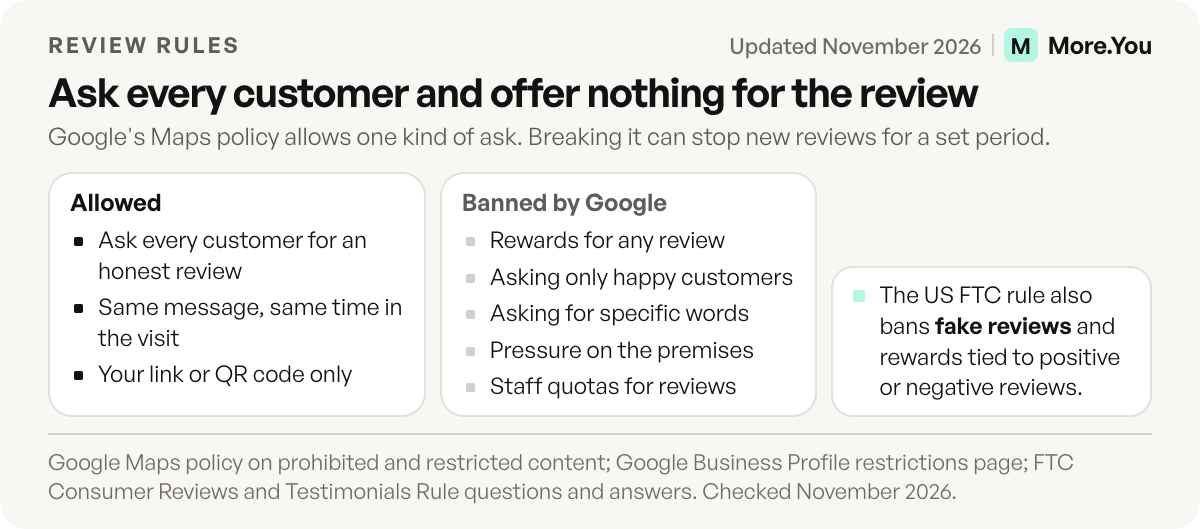
Google lets you ask every customer for an honest review. It bans any reward for a review, asking only happy customers, asking for specific words and pressuring people to review while they are on the premises. In the US, the FTC’s reviews rule bans fake reviews and rewards tied to a positive or negative review. Google’s rule is the stricter one, so follow it.
| What you do | Google Maps policy | FTC (US) |
|---|---|---|
| Ask every customer for an honest review | Allowed | Allowed |
| Offer a discount or freebie for any review | Banned | The rule bans rewards tied to the review’s sentiment; FTC guidance says to disclose any reward |
| Reward only 5-star reviews | Banned | Banned |
| Ask only customers you expect to be happy | Banned | No specific ban in the rule, but FTC guidance says not to |
| Push a customer to remove a bad review | Banned when you offer anything in return | Banned when it uses unfounded legal threats or intimidation |
The Google column comes from Google’s Maps policy on prohibited and restricted content (checked November 2026), which also bans asking staff to collect a set number of reviews. The FTC column comes from its questions and answers on the rule, in effect since October 21, 2024, and its January 2022 guide on soliciting reviews.
Review gating means asking customers how they felt first and sending only the happy ones to Google, for example a “rate us 1 to 5” screen that shows the Google link only after a 4 or 5. Google’s policy bans it as selectively soliciting positive reviews.
Breaking the rules costs more than the removed reviews. Google’s page on Business Profile restrictions says it may stop a profile from receiving new reviews for a set period, unpublish its existing reviews, or show customers a warning that fake reviews were removed.
What to say when you ask for a review
A good review request names your business, asks for an honest review and gives the link. It offers nothing in return, asks for no star rating and suggests no words. Send the same message to every customer.
For a text or WhatsApp message after a visit:
Hi [name], thanks for coming to [business] today. If you have a minute, you can leave an honest review on Google here: [your review link]For a thank-you email:
Subject: How was your visit to [business]?

Thanks for choosing [business]. Your review helps other customers decide. You can leave an honest review on Google here: [your review link]
For a counter sign or a receipt, next to the QR code:
Tell us how we did. Scan to leave a review on Google.Your review link works best where customers already look for you. Add it as a link block under your opening hours, and everyone who opens your page sees how to review you next to when you are open. Create your More.You page on the Free plan, add both blocks, then print the page’s QR code for your window.
FAQ
Where do I find my Google review link?
Your review link sits in your Business Profile. Sign in to the Google account that manages the profile, search Google for my business, then select Read reviews, Get more reviews and Copy.
Can I get a Google review link without access to the profile?
Google documents the review link only inside the Business Profile, so the official route needs owner or manager access. Some free generators build a link from the business’s place ID. Google does not document that format and says place IDs may change, so test that link before you print it.
Do customers need a Google account to leave a review?
Yes. Google says customers must be signed in to a Google account to leave a review. They can create one with any email address, including a non-Gmail one.
Can I offer a discount for a Google review?
No. Google bans payment, discounts, free goods and free services in exchange for any review, honest or not. It removes those reviews and may stop the profile from getting new reviews for a set period.
How do I share one specific Google review?
Open Google Maps, search for your business name and city, and select Reviews. Next to the review, select More, then Share review, then Send a link, and copy the link.
Sources
- Google Business Profile Help: Create a Google link or QR code to request reviews, checked November 2026
- Google Business Profile Help: Tips to get more reviews, checked November 2026
- Google Business Profile Help: Manage customer reviews, checked November 2026
- Google Business Profile Help: Find your business on Google, checked November 2026
- Google Business Profile Help: Owners and managers, checked November 2026
- Google Business Profile Help: Restrictions for policy violations, checked November 2026
- Google Maps: Prohibited and restricted content, checked November 2026
- FTC: Consumer Reviews and Testimonials Rule, questions and answers, checked November 2026
- FTC press release: final rule banning fake reviews, August 14, 2024
- FTC: Soliciting and Paying for Online Reviews, a guide for marketers, January 2022
- Google Maps Platform: Place IDs, checked November 2026
- More.You feature pages: more.you/features/bio-page-blocks, more.you/features/qr-sharing, more.you/features/analytics-attribution and more.you/features/ai-native-pages (November 2026)
Platform rules and prices checked November 2026.